Azure: SMTP configuration for email sending
Creating an application in Azure Active Directory
- Start the Azure portal (https://portal.azure.com) and log in with your Microsoft account
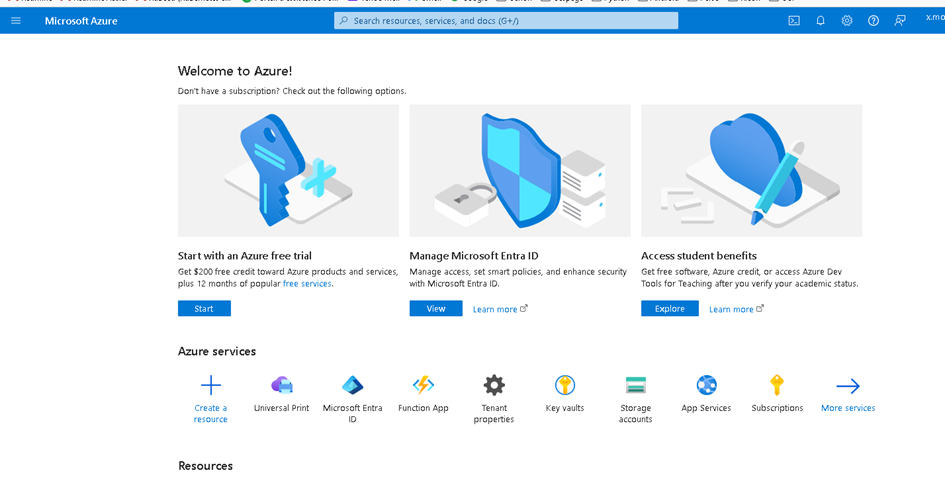
- Select ‘Microsoft Entra ID’ in Azure services
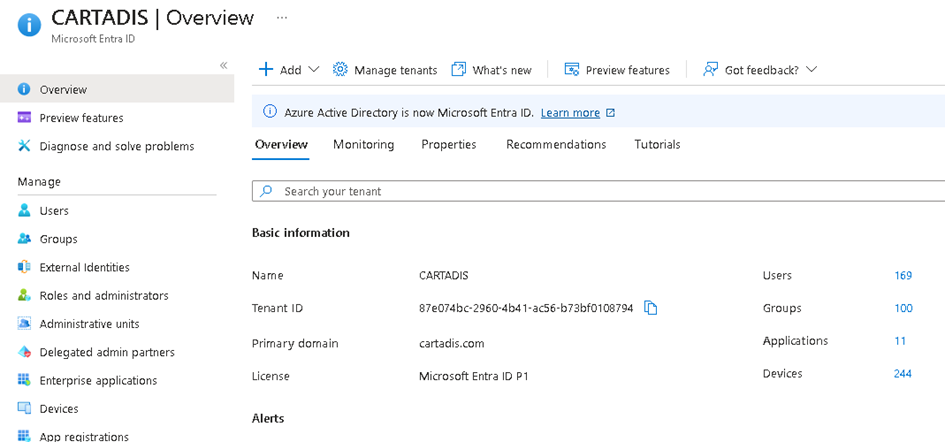
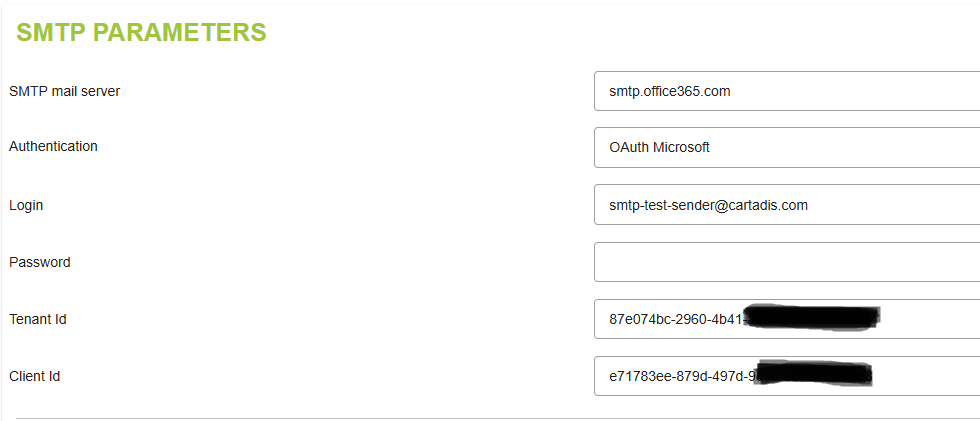
Copy and paste the tenant id, it will be needed to configure the email profile (ie tenant id)
- Select ‘App registrations’ on the left
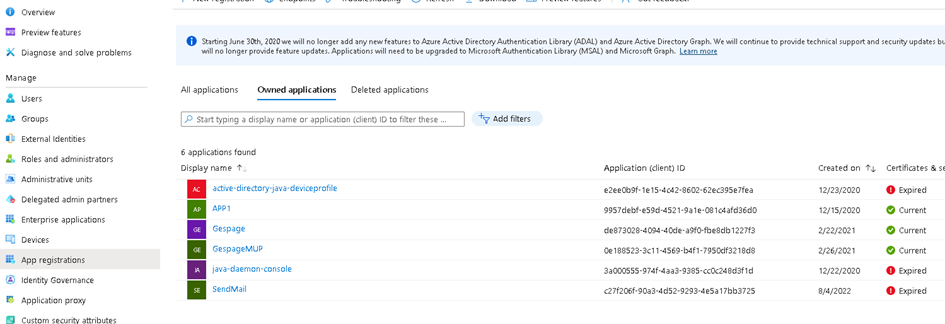
- Click on ‘new registration'
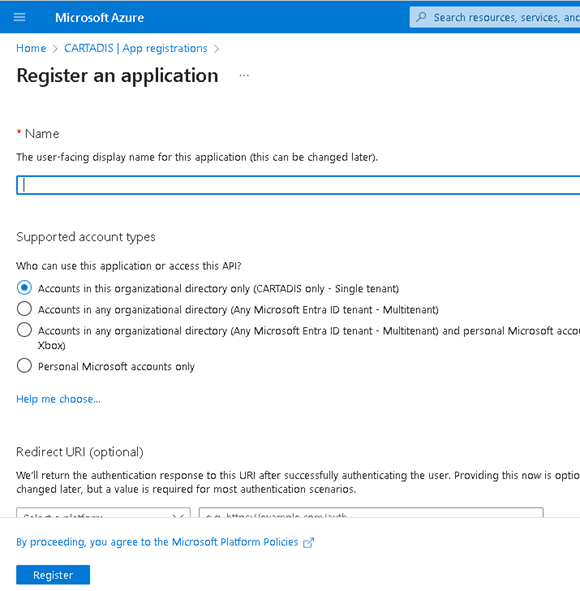
Enter a Name, select a Supported account type and click on ‘Register’.
You will be taken to the page for the application you have just created
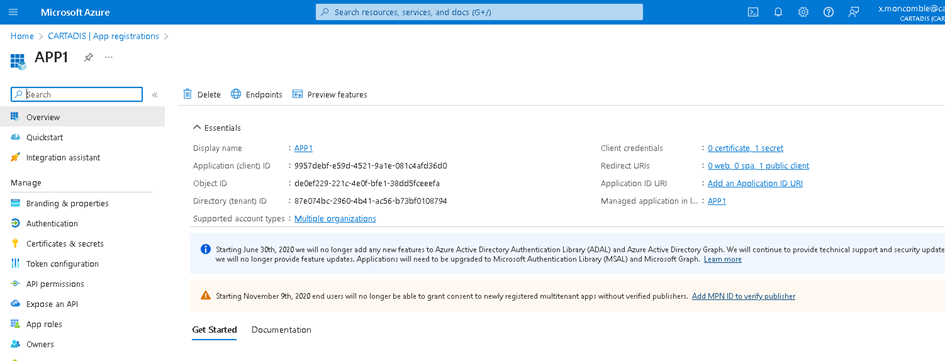
Copy the ID from ‘Application (client) ID’, which you will need to configure the email profile (application ID).
- Select ‘API Permissions’ on the left
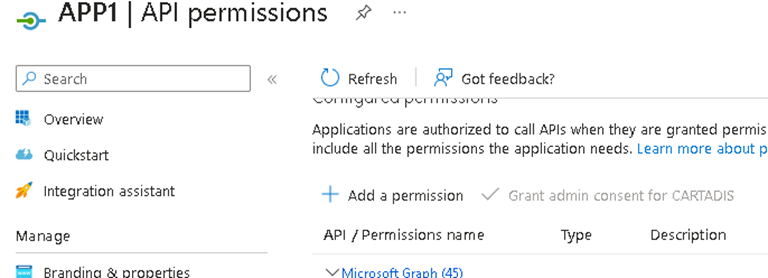
You need to add the following rights
- Delegate API
Click on ‘add a permission'
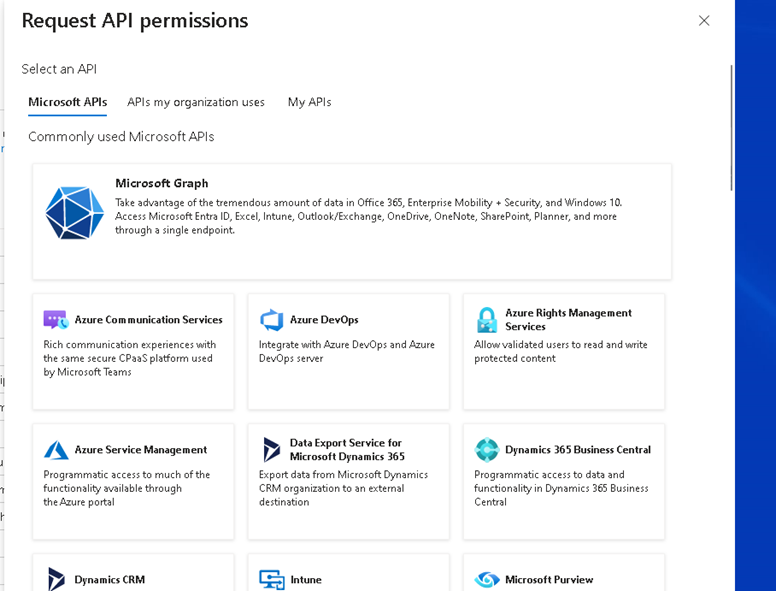
Click on Microsoft Graph
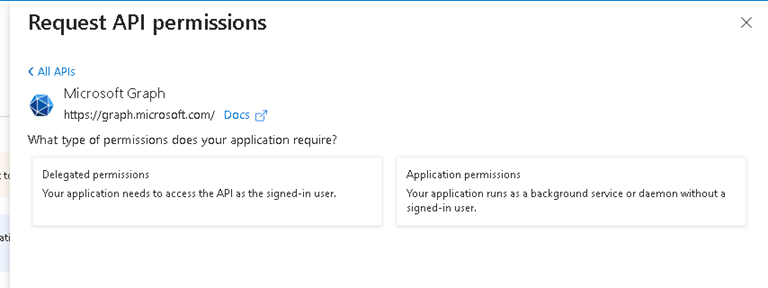
Click on ‘Delegated permissons’ and select the following APIs
- SMTP.Send
Click on ‘Add permisions'

NOTE
If you are not an administrator, you must ask your administrator for consent.
They must go to this page with their account and click on the ‘Grant Admin Consent’ button.
Once you have done this, refresh the page. The API status must be green
- Select ‘Authentication’ on the left'
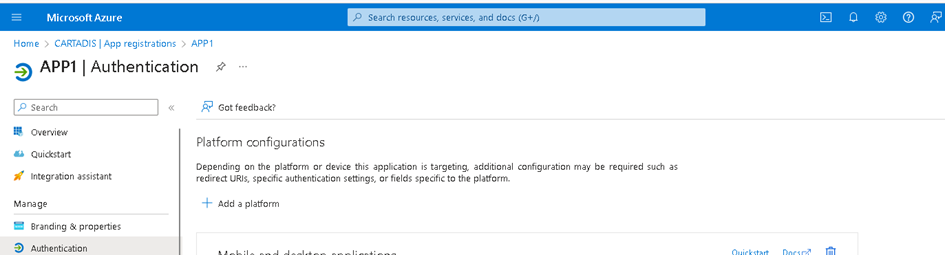
Click on ‘add a platform'
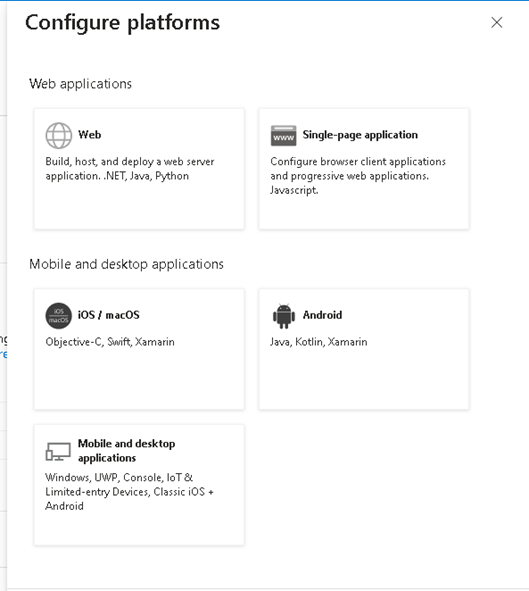
Click on ‘Mobile and desktop application’.
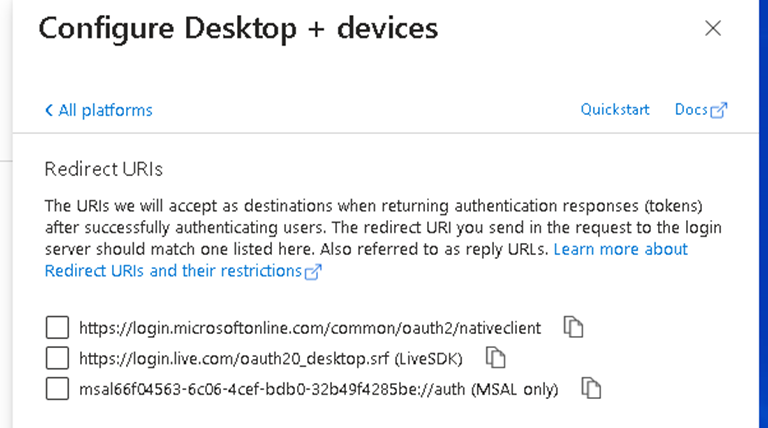
Select https://login.microsoftonline.com/common/oauth2/nativeclient and click on the ‘configure’ button
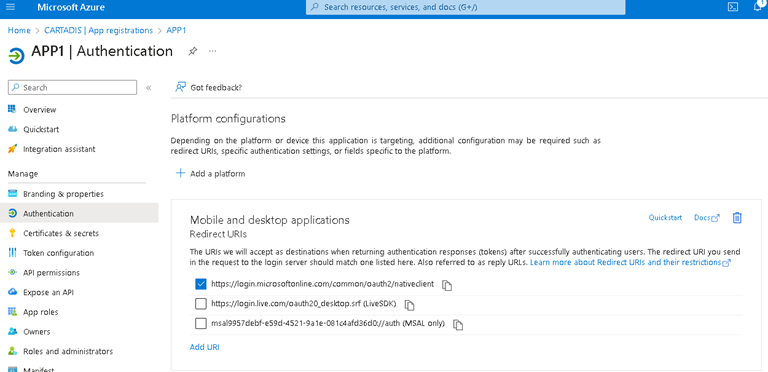
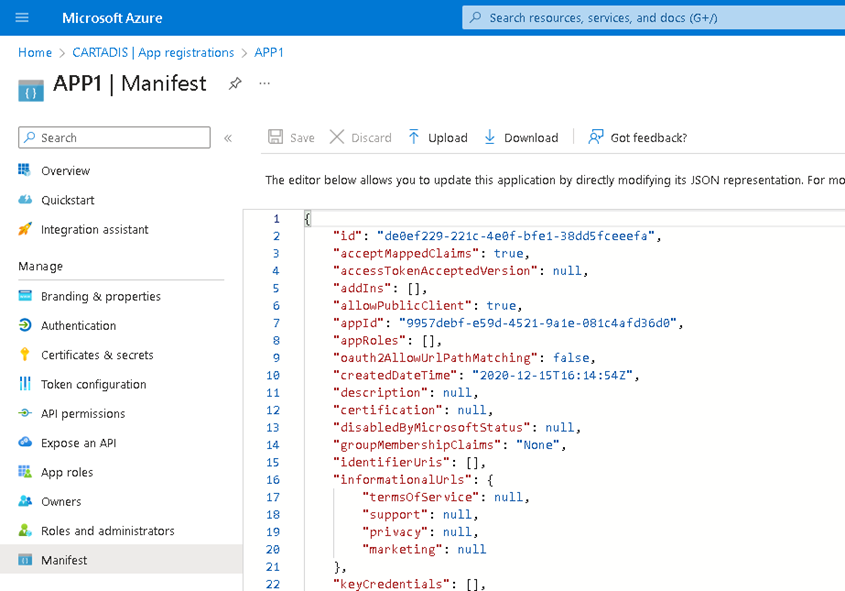
- Select ‘Manifest’ on the left
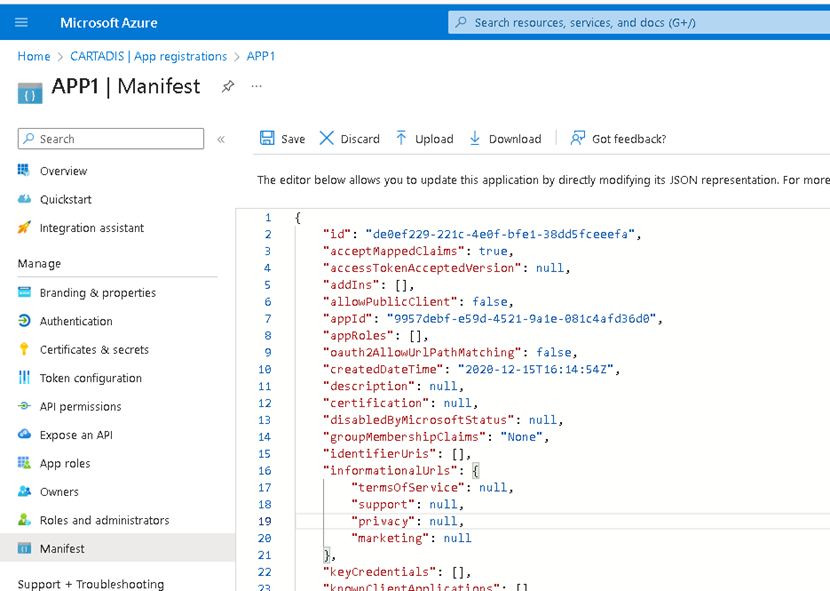
Set the allowPublicClient value to true and click on ‘save’.
Setting up an SMTP parameters
Was this article helpful?
That’s Great!
Thank you for your feedback
Sorry! We couldn't be helpful
Thank you for your feedback
Feedback sent
We appreciate your effort and will try to fix the article