Remote Control Tutorial for Lexmark MFPs
There are two methods to remotely access the copier's screen:
Method 1: Via the Admin Interface (VNC Remote Control Panel)
Log in to the copier’s admin interface.
Navigate to:
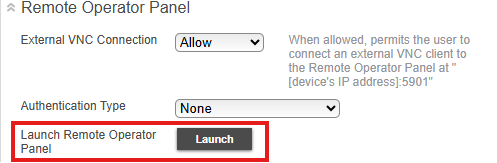
Settings > Device > Remote Control Panel > External VNC Connection
Click the "Execute Remote Control Panel" button to access the copier’s screen.
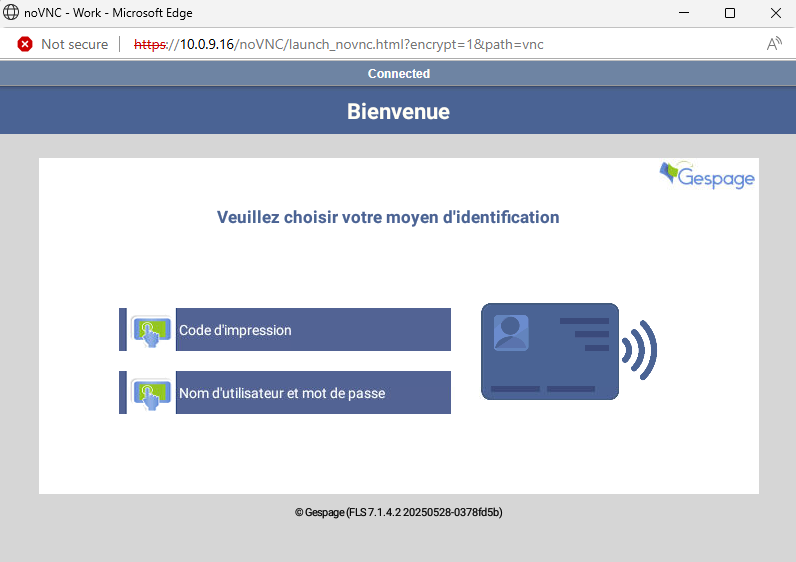
Note: Only one user can connect at a time (similar to Ricoh devices).
Method 2: Direct Connection via VNC Viewer
Open VNC Viewer and connect using : MFP_IP_ADDRESS:5901
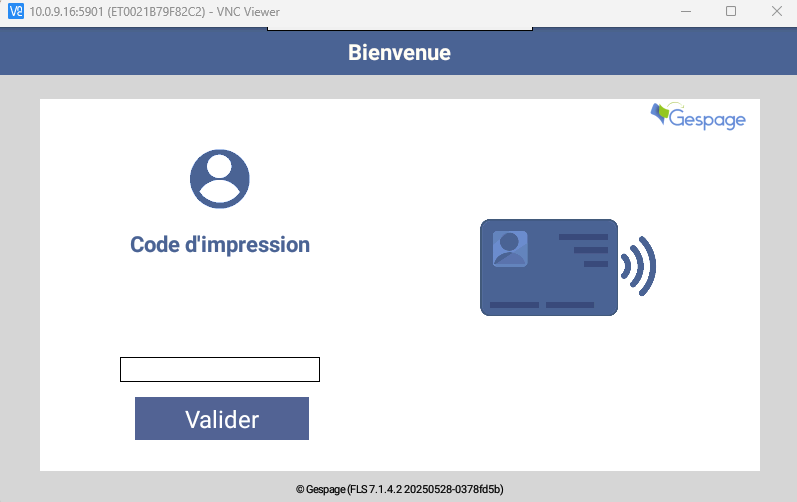
This allows for flexible remote troubleshooting and configuration.
Was this article helpful?
That’s Great!
Thank you for your feedback
Sorry! We couldn't be helpful
Thank you for your feedback
Feedback sent
We appreciate your effort and will try to fix the article