Kyocera - Deployment of the Kyocera eTerminal application on multiple MFPs
In this article, we will look at how to deploy the Kyocera eTerminal application simultaneously on multiple MFPs using Kyocera Net Viewer.
Prerequisites
Latest version of Kyocera Net Viewer
Preferably installed on the Gespage server. More information at: KYOCERA Net Viewer.
MFP administrator credentials.
Latest version of the Kyocera eTerminal package
Default path for the package:
Windows:
C:\Program Files\Gespage\GespageCore\server\resources\medias\kyocera
Linux:
/opt/Gespage/GespageCore/server/resources/medias/kyocera
Step 1: Add MFPs to Kyocera Net Viewer
1.Open Kyocera Net Viewer.
2.Go to the menu:
Device → Discovery → Add Devices

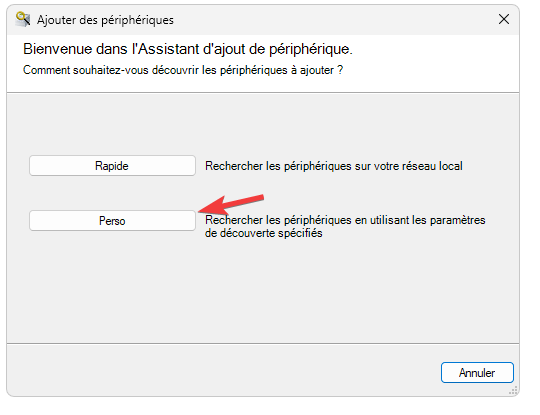
Click on Custom Add Method (‘Perso’).
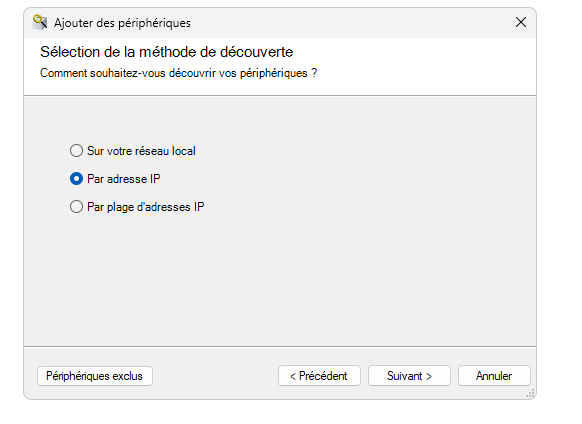
Choose according to your network:
IP address (for a single MFP)
IP range (for a group addition)
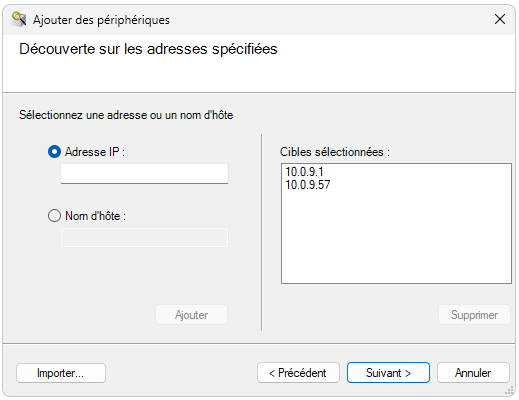
Enter the IP addresses of the MFPs concerned:
Configure administrator credentials for each MFP:
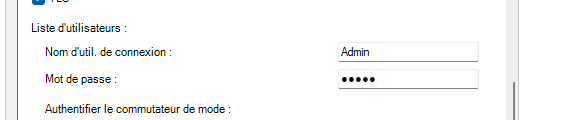
⚠️ Warning: If each MFP has a different administrator password, you will need to add them one by one.
Step 2: Deploy the Gespage eTerminal application
Select the MFPs on which you want to install the Gespage application:
Hold down the <CTRL> key and right-click on each MFP.

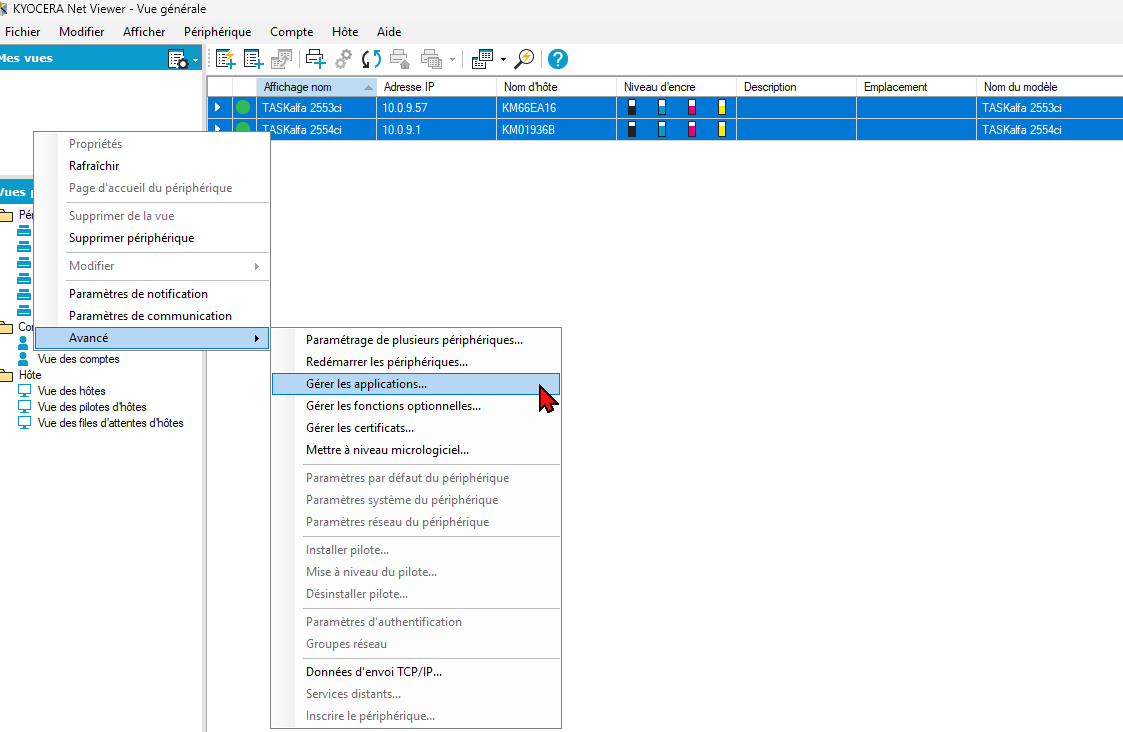
Right-click on a selected MFP → Advanced → Manage Applications
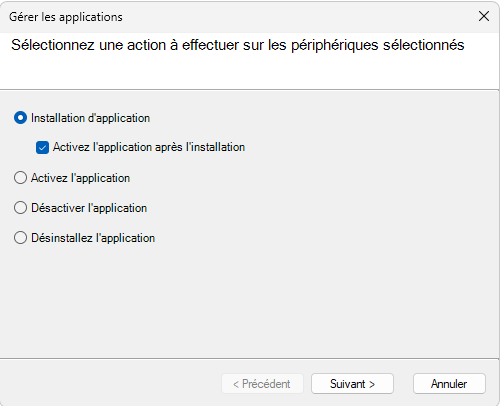
Click on Install an application.
Check the option: ‘Activate the application after installation’
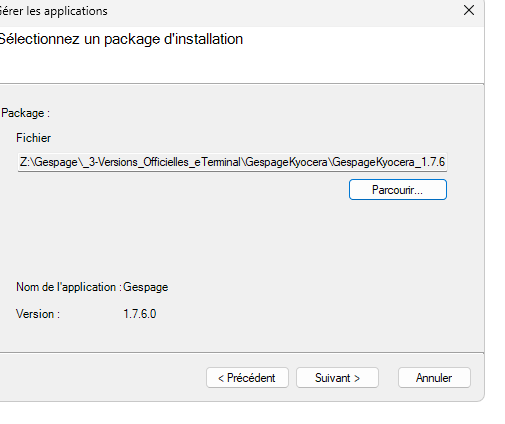
Select the Kyocera eTerminal package and start the installation:
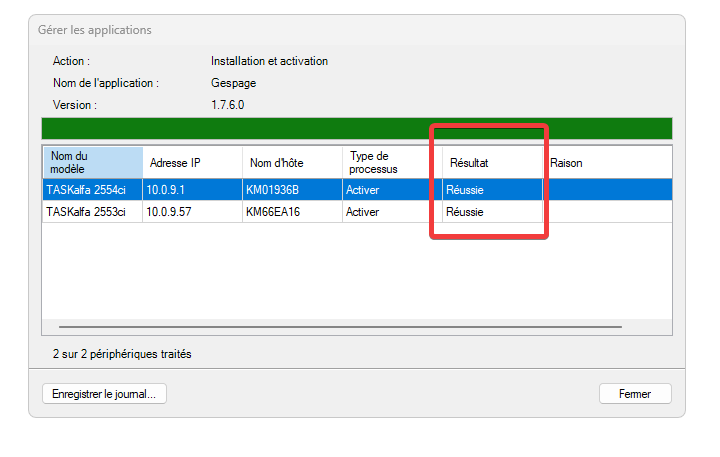
Track progress from the Kyocera Net Viewer interface:
Was this article helpful?
That’s Great!
Thank you for your feedback
Sorry! We couldn't be helpful
Thank you for your feedback
Feedback sent
We appreciate your effort and will try to fix the article